
Presets allow you to reuse styling and behavior across multiple hotspots or skin components. Instead of manually copying colors, fonts, borders, actions, and other settings from one element to another, you create a preset once and link it wherever you need it.
When you later update the preset, every linked hotspot or skin component is updated automatically.
In other design software, presets may also be referred to as (design) tokens or (combo) classes.
Hotspot Presets vs. Skin Presets
360Crafter contains two separate preset systems:
-
Hotspot Presets
-
Skin Presets
Although they are managed independently, they work exactly the same way. Everything explained in this article applies to both systems.
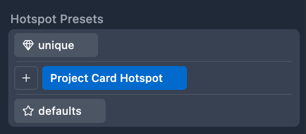
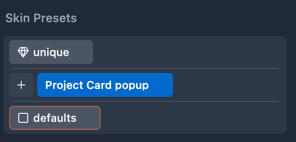
Preset Types
Each hotspot or skin component can use three types of presets:
-
Unique
-
Custom
-
Defaults
These presets work together in a priority system, where higher-priority presets override lower-priority ones.
Unique Preset
The Unique preset contains styling and actions that apply only to the currently selected hotspot or skin component.
Use it when an individual element needs to look or behave differently from everything else.
For example, if one hotspot should have a purple background while every other hotspot remains unchanged, configure that color on its Unique preset.
The Unique preset always takes highest priority over other presets.
Defaults Preset
The Defaults preset defines the starting appearance and behavior for a specific hotspot or skin type.
Each hotspot type has its own defaults. For example:
-
Text Hotspots
-
Icon Hotspots
-
Video Hotspots
Changing a Defaults preset only affects newly created items of that type.
For example, if you change the Icon Hotspot Defaults preset to have:
-
a white background
-
a circular shape
Every new Icon Hotspot you create will automatically start with those settings instead of the standard appearance.
The Defaults preset always takes the lowest priority compared with other presets.
Custom Presets
Custom presets let you create reusable styles that can be shared across multiple hotspots or skin components.
Create one by clicking the + button located between Unique and Defaults, then give it a descriptive name, such as:
-
Project Card Hotspot
-
Navigation Button
-
Warning Marker
Once linked, every hotspot using that preset shares the same styling and actions.
For example:
-
one preset could create white circular hotspots with a green border
-
another could create red squares with 5 px rounded corners
Editing the preset later automatically updates every linked hotspot.
The Custom preset takes higher priority than Defaults but lower priority than Unique. There can be multiple custom presets on a single hotspot or skin component. The last linked custom preset takes priority over the custom presets that were already added before.
Preset Priority
When multiple presets define the same property, the preset with the highest priority wins.
Priority is always:
-
Unique
-
Custom Presets (top to bottom)
-
Defaults
This means:
-
Unique always overrides Custom and Defaults.
-
Custom presets override Defaults.
-
If multiple Custom presets are linked, the one higher in the list takes precedence.
If you want to change the order of Custom presets, unlink the preset and link it again. Newly linked presets are placed above older ones.
Understanding Preset Indicators
The Properties panel uses color indicators to show where each value comes from.
Blue
A blue-highlighted property belongs to the currently selected preset.
Any changes you make will be stored in that preset.
Orange
An orange-highlighted property is inherited from another preset.
Hover over the property to see which preset supplies the value.
Red (Strikethrough)
A red property with a strikethrough indicates that the value exists but is currently overridden by a higher-priority preset.
For example:
-
The Unique preset sets the background color to purple.
-
Your Project Card Hotspot custom preset sets the background color to white.
Because Unique has a higher priority, the hotspot appears purple.
If you later remove the purple background from the Unique preset, the hotspot automatically falls back to the white background defined in the Project Card Hotspot preset.
Presets for Design and Actions
Presets are not limited to visual styling. They can also contain Actions.
For example, imagine a hotspot that triggers a notification.
-
If the notification action is added while the Unique preset is selected, only that hotspot will trigger the notification.
-
If the notification action is added to a Custom preset, every hotspot linked to that preset will automatically inherit the same action.
This makes presets useful for maintaining both a consistent appearance and consistent behavior throughout your project.